Showing posts with label android. Show all posts

Earn From Your Photos

jillela chandrashekhar Add Comment
Get Paid To Take Photos.


ur network is here to help you sell your pictures to thousands of potential buyers that need them for websites, catalogs, books, magazines, ads, and a variety of other uses.


How does it work?


Take Photos!
Grab your camera and start taking photos!


Where Do I Work?
You work online as a freelancer. Be your own boss! Work when and where you want!

Upload
Upload and instantly sell to millions of potential buyers

Earnings
You can earn from unlimited photos!


Do You Live Outside The US?
No Problem! You can get paid to take photos
no matter where you live!


How To control Any PC Anywhere On Smartphone Using The TeamViewer apk 7.0.238

jillela chandrashekhar 1 Comment
To control Your PC Anywhere On Your Smartphone  Using The TeamViewer 


Download the TeamViewer App on play store and download TeamViewer software for pc


open the TeamViewer software on pc 

open TeamViewer app 

Enter the  TeamViewer  patnar ID "xxxxxxxxxx" 
given the TeamViewer  software 


Enter the password  XXXXXX

click OK

You can control your PC anywhere


To Find Who Views Your FaceBook Profile

jillela chandrashekhar
How Many Views Your Face Book Profile To Follow Few Steps 

1. Login your account
2. Goto your profile
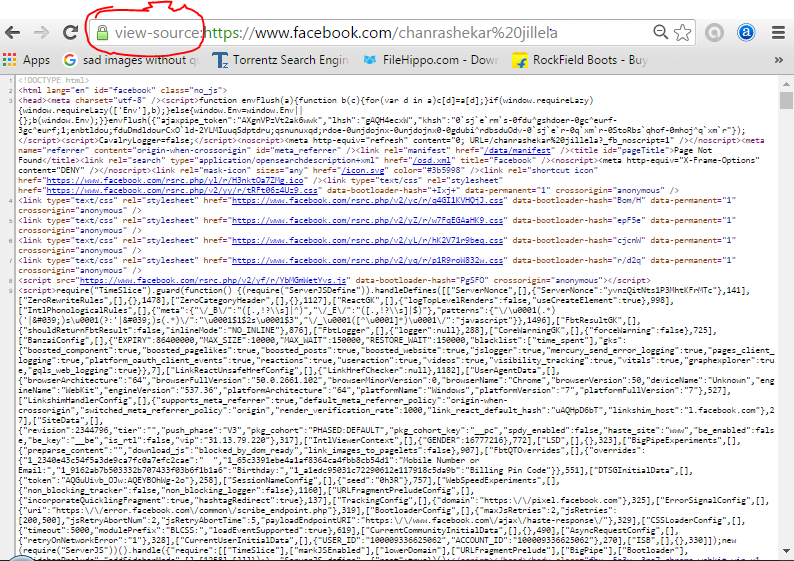
3. Press Ctrl+U (automatically opened source window)
                         OR
    Write "view-source:"in URL box


5. To Press Ctrl+F find the "AvailableListInitialData" in that window


6.
Copy any number like 1000052126....... and paste it in URL box
    https://www.facebook.com/profile.php?id=1000052120......


  Then the viewer can appear


Best Android Emulator For PC Using The BlueStacks

jillela chandrashekhar
Bluestacks is an American technology company that produces the BlueStacks App Player and other cloud-based cross-platform products. The BlueStacks App Player is designed to enable Android applications to run on Windows PCs and Macintosh computers


DOWNLOAD

To Test your NetWork Speed Using The speedtest.net

jillela chandrashekhar
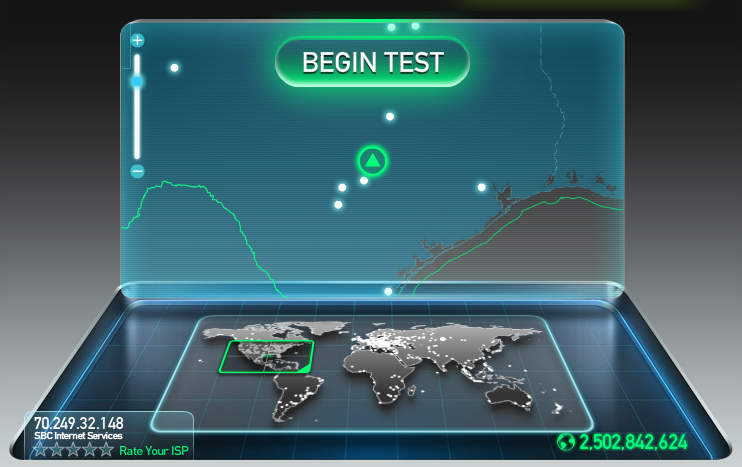
Test your NetWork Speed Using The speedtest.net


Using the speedtest.net to test your broadbang OR network speed on your pc

APPS

Powered by Ookla the global standard in network testing.to created the android,ios app testing to mobile OR SmartPhone Network speed

for Android  IOS                     


Hack And Tweak With One Click using the Andromizer app

jillela chandrashekhar Add Comment
Andromizer and Andromizer Pro give easy access to a plethora of modifications
Andromizer
Andromizer is a universal toolkit that – provided you have root access and a Busybox binary installed – gives access to a huge number of modifications, tweaks and hacks on your Samsung device, all via an easy-to-use interface. Available in both free and paid (£1.81/$2.76) pro versions, the app includes a host of universal modifications, as well as device specific tweaks for a growing number of devices – primarily Samsung products at the moment. In addition, Andromizer provides a number of easy-touse features including a system information viewer, reboot tools, a one-touch optimization option, a ROM cleaner, user and system data backup and restore features (pro version required) and a tool to back up and restore SMS and call logs. If you are using a TWRP or PhilZ recovery image, one-touch links are also provided by Andromizer to boot to recovery and run a backup, restore, wipe or zip installation. As with all root applications (and particularly modification or hacking apps), using some of the tweaks can be dangerous – you should take a full Nandroid backup of your device before you start and copy it to your computer, in case you have to completely factory reset. We’ll show you how to install BusyBox on your device so that you are ready to use Andromizer right away, as well as taking you through a selection of the features that the application offers.
BusyBox
1. Install BusyBox

BusyBox is a binary that includes a host of useful shell commands. These are often used by hacking applications, but they are also useful if you run an ADB shell. Download ‘Busybox’ by JRummy or Stericson from the Play store. Launch and install it.


2. WiFi Scan Interval

Andromizer lets you set the WiFi Scan Interval for your device. This value, set in ms and found on the Settings page, controls how often your device checks for new networks when not connected. Increasing this can help save battery power.


3. Increase the WindowMgr


 Also found in Settings, some users have found increasing the ‘WindowMgr Max Events Per Second’ value can help with scrolling smoothness, as it lets the Window Manager to process on screen tasks more quickly.


4. LCD Density

Changing the LCD Density of your device enables you to make on-screen elements smaller or larger. Not all apps will appear correctly at different densities, so there is likely to be some trial and error required in finding a value that you like.


5. Dalvik Heap Size

The Dalvik Heap Size corresponds to how much heap (memory space) an app can use. Apps can be slowed down by memory management tasks if their usage approaches the max, in which case increasing this may offer some benefit.


6. Kernel tweaks

The One-Touch Kernel Tweaks option, found in the Tweaks section, enables you to easily change kernel options including frequency, governor, scheduler, power saving and more. You can apply changes temporarily or such that they survive reboots. Try first!
7. Build Prop

The Build Prop Manager lets you edit your device’s build. prop values. Using the editor you can change your device to appear as something else, change the ROM version display, switch default locale or modify a whole host of low level settings.
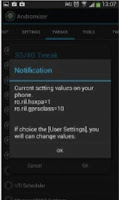


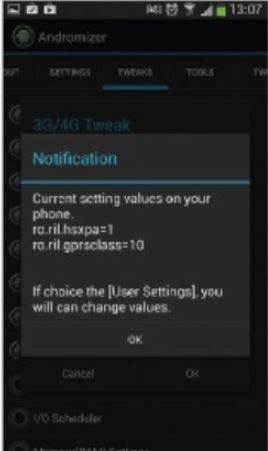
8. 3G/4G settings

The 3G/4G Optimizer enables you to modify your HSPA settings. By modifying the HSDPA (download) category and HSUPA (upload) category you may be able to improve data speeds. Search the terms to find out more about them.
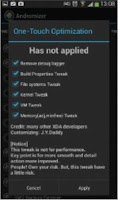


9. Optimiser

If you’re not sure which settings to change but you want a quick and easy boost to your system, the ‘One-Touch Optimisation’ option is worth a try. The low risk changes applied here should give your device a small performance upgrade.


10. Regain space

Andromizer’s ROM Cleaner function clears a host of different caches, which could help you regain some of your storage space. Many of the areas cleaned should be automatically maintained by Android, but we did regain a little bit of space.


How TO Set The mobile Silence Mode Automatically

jillela chandrashekhar Add Comment

Smart Silence ensures your phone never goes off when it’s not supposed to again


Once you’ve downloaded the app, you can start creating profiles. The first screen asks if you want to make a schedule of silence or a one-off event. Pick a schedule and you’ll be taken to a screen that lays out your choices.


Here you can choose when your phone will activate Silent mode. Pick the day, followed by the time period, and give the profile a name so it’s easy to find if you ever need to amend any details or remove it altogether.


Finally you can set whether or not you want your phone to vibrate during the time period by ticking the check box at the bottom of the settings. When you’re done, just tap the Save button to create and remember your profile.


When your profile is saved you’ll be taken back to this screen where you can set new schedules or one-off events. It’s not the most in-depth app, but it’s ideal for making sure your phone never causes a disruption again.

Enjoy This Tip  ☺☺☺☺☺

Some Cool Tricks On Android

jillela chandrashekhar Add Comment
Some Cool Tricks On Android


 If you need to clear the default app?


  1. Run the Settings app and tap Apps under DEVICE.
  2. Choose the app you do not want to launch by default.
  3. Tap 'Clear defaults' under LAUNCH BY DEFAULT.
- Wipe data if you lose your phone 


  1. Double-check to make sure Android Device Manager is installed
  2. Go to google.com/android/devicemanager
  3. Select your phone from the menu
  4. Now you can see the location, ring it, lock it, or erase it
- Save battery on GPS


  1. Go to Settings > Location
  2. Tap on “Mode”
  3. Select your desired location mode
- Turn off Auto correction 


  1. Open the app Settings and select 'Language & input' under PERSONAL.
  2. Tap the Quick Settings icon
next to 'Android keyboard'.
  1. Select 'Auto correction' under TEXT CORRECTION.
  2. Select 'Off' to turn off 'Auto-Correction'.


Hope these tricks help you......

A Simple, Fast, And Effective Way To Update Blogs Remotely

jillela chandrashekhar Add Comment


1: Make a blog post


Blogger is so simple, you can post from anywhere at any time. There’s really no reason not to update your blog when you have a spare minute.


2: Draft and post later

Had a great idea but don’t want to publish now? Save as a draft and return to it later, on your mobile device or your computer, it’ll be there waiting.


so guys u con all so post your post on your smart phone.
☺☺☺

How To View Saved Wifi Passwords In your Android Device using the app

jillela chandrashekhar 1 Comment


►First download ES File Explorer or Root Explorer on play store 


►Install ES File Explorer or Root Explorer


►Go to home and go to settings turn on your wifi, see the your already saved passwords


►Go to  ES File Explorer or Root Explorer 


►Open device

►Go to data,and go to misc 


►Open misc go to wifi and  open wpa_supplicant.conf


►Select wpa_supplicant.conf and then choose ES note Editor


►And then boooooooooom appears to check psk for passwords  


 And thank you for watching 
Don't forget follow me an my google+ for more Tricks.............☺☺☺